Claude Code Integration
Claude Code is Anthropic's terminal-based coding agent. It supports remote MCP servers natively — no bridge, no local PortDive binary install required.
Prerequisites
- Claude Code installed
- A PortDive account
1. Configuration
Two ways to add the PortDive connector.
Option A: per project (.mcp.json)
Create a .mcp.json file in the repo root (or extend an existing one):
{
  "mcpServers": {
    "portdive": {
      "type": "http",
      "url": "https://mcp.portdive.app/mcp"
    }
  }
}
This file is scoped to the current project. You can commit it to share with your team.
Option B: global via CLI
If you want the connector available in all Claude Code sessions:
claude mcp add --transport http portdive https://mcp.portdive.app/mcp
The entry lands in ~/.claude.json and applies to every project.
2. First sign-in
Start Claude Code in your project folder and run:
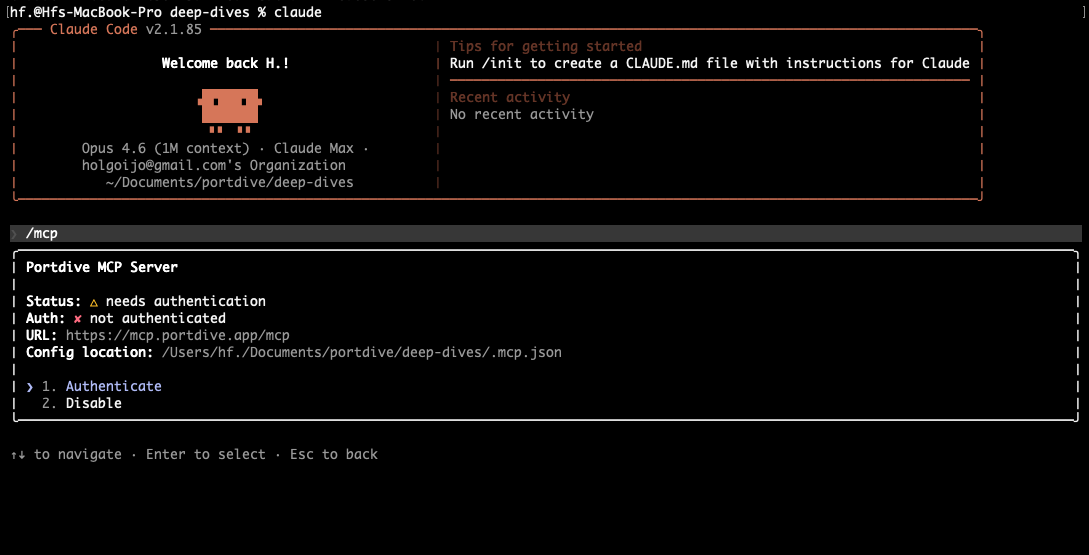
/mcp
You'll see the portdive server with Status: ✗ Disconnected and Auth: not authenticated. Select the entry and press 1 Authenticate:
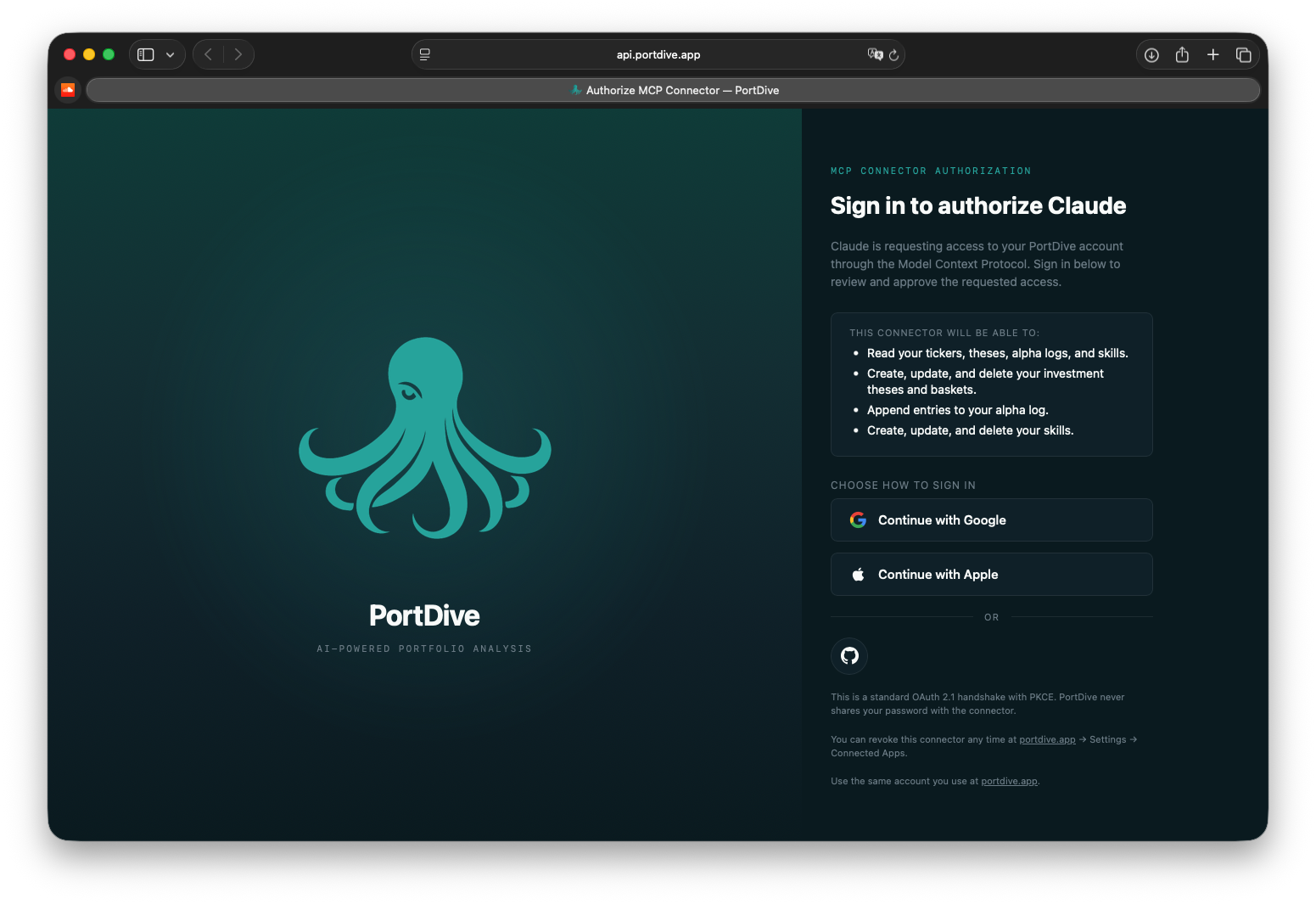
Your default browser opens on the PortDive sign-in page — choose your preferred login (Google, Apple, or GitHub):
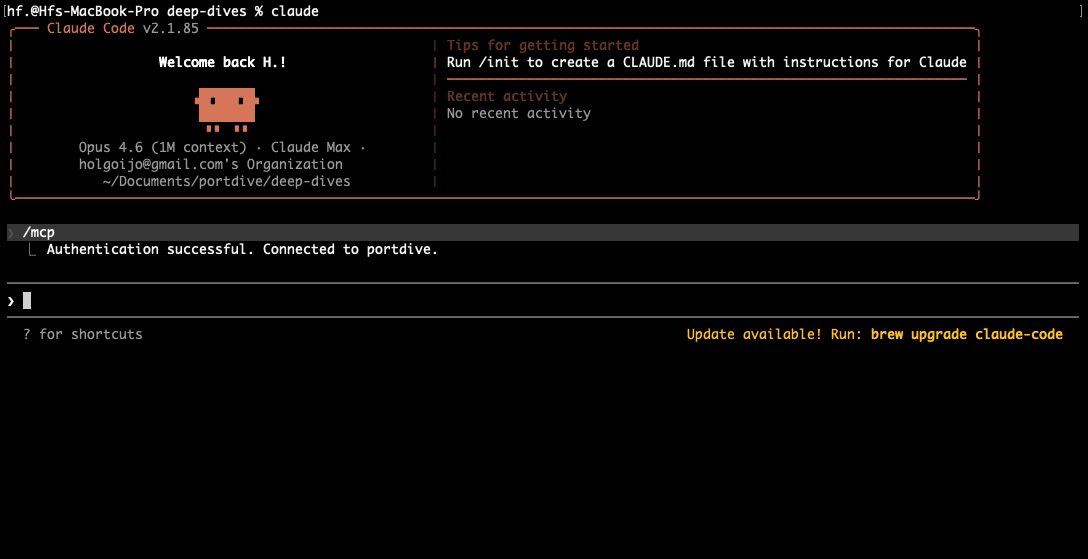
After signing in, the terminal confirms Authentication successful. Connected to portdive. — all PortDive tools are immediately available.
3. Usage
/mcp now shows portdive as Connected with the number of available tools.
Example prompt:
Use the PortDive MCP and summarise my open investment theses.
Claude Code now invokes the relevant PortDive tools in the background.
4. Troubleshooting
- 401 / token expired → run
/mcpand re-authenticate. The OAuth session refreshes automatically afterwards. .mcp.jsonis ignored → make sure the file lives at the repo root and contains valid JSON.- Connector does not show up → for option B, check
~/.claude.jsonfor themcpServers.portdiveentry.
Next step: Learn more about using the MCP server in your daily workflow.